Terminal unleashed
Tomasz Wójcik - 17 kwietnia 2014
Web developers will, sooner or later, be forced to use a terminal. However not every programmer is aware that being proficient in using a console (and it’s tools) can speed up work A LOT.
In this post I will show you the tool for handling multiple command lines with ease.
tmux – sessions, windows
tmux stands for terminal multiplexer. It is really easy to use even for someone who just launched it for the first time.
Since the tmux only drawback is default hotkey for commands (ctrl+b) I suggest to remap it in the ~/.tmux.conf to ctrl+a. In this tutorial I will use the latter shortcut.
To start tmux (session with one window) invoke tmux in the console.
Windows & panes
When you start your first tmux session you will get something like this:
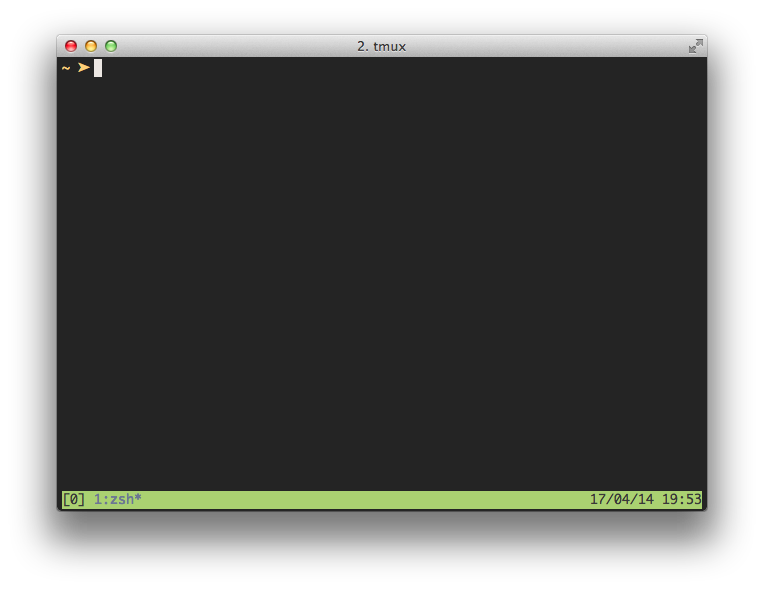
In the lower left you can see [0] which is session name and our first window 1:zsh – those are window number and window name.
To rename current window press ctrl+a then press ,. Since our work can’t be handled in just one window (for example we want to type commands and watch logs at the same time) we want to split our window:
- for horizontal split press
ctrl+a then press " (shift+")
- for vertical split press
ctrl+a then press % (shift+5)
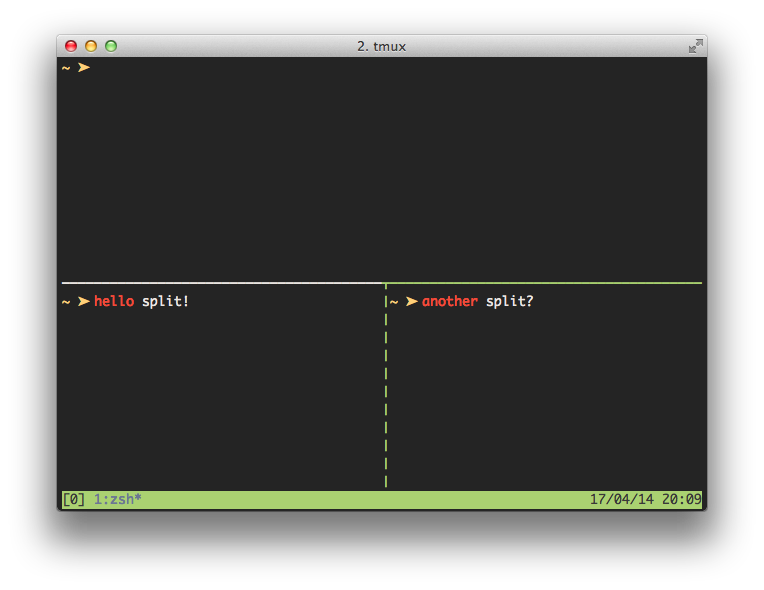
To close the current pane press ctrl+d. If you close all panes in the window the window will get closed or the session will get killed (if it was the last window).
To create new window press ctrl+a followed by c.
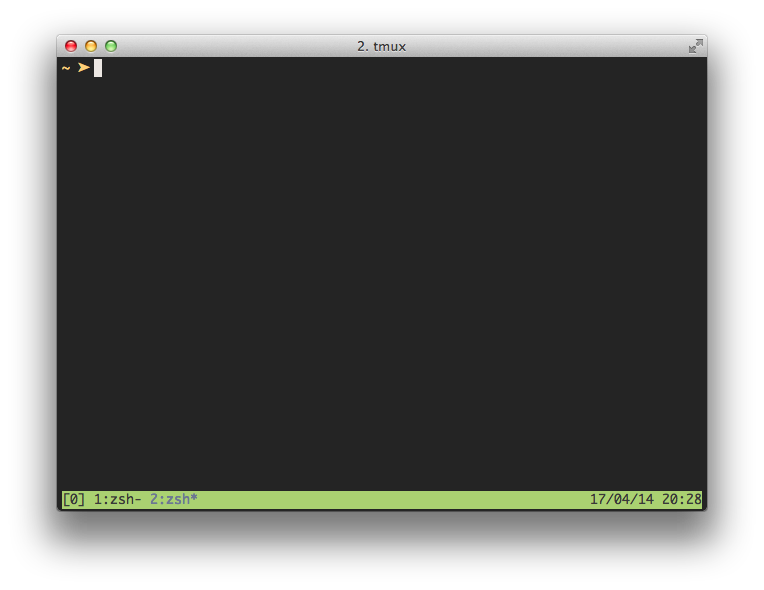
Notice that at the bottom appeard new window with index 2 named zsh.
Navigation
Windows and panes are nothing if you cannot navigate between them.
Switching between windows is fairly easy, just press ctrl+a followed by the index of a window you want to navigate to.
Navigation between panes is a bit more complicated: press ctrl+a then : (shift+;) and type select-pane -[ULDR] where U stands for Up, L for Left and so on.
This is not handy at all, so for our convenience we have to add some shortcuts to the ~/tmux.conf:
I suggest Vim style navigation:
bind h select-pane -L – move to the left pane on ctrl+a followed by hbind j select-pane -D – move to the down pane on ctrl+a followed by jbind k select-pane -U – move to the up pane on ctrl+a followed by kbind l select-pane -R – move to the right pane on ctrl+a followed by l
Sessions
If you are working on multiple projects during a day you probably want to separate your work on one project from another. Sessions are ideal solution for that – having multiple presets of windows (with panes) for each project will save you a lot of time. And separating one project from another will protect you from doing something accidentally on the wrong project.
We know that tmux command will create an empty session with number as a name. However we can create session with specific name: tmux new -s <name>. If you forgot to create new session with specified name you can always rename the current session using ctrl+a followed by $ (shift+4) shortcut.
Let’s create 2 sessions using this notation:
tmux new -s blogtmux new -s work
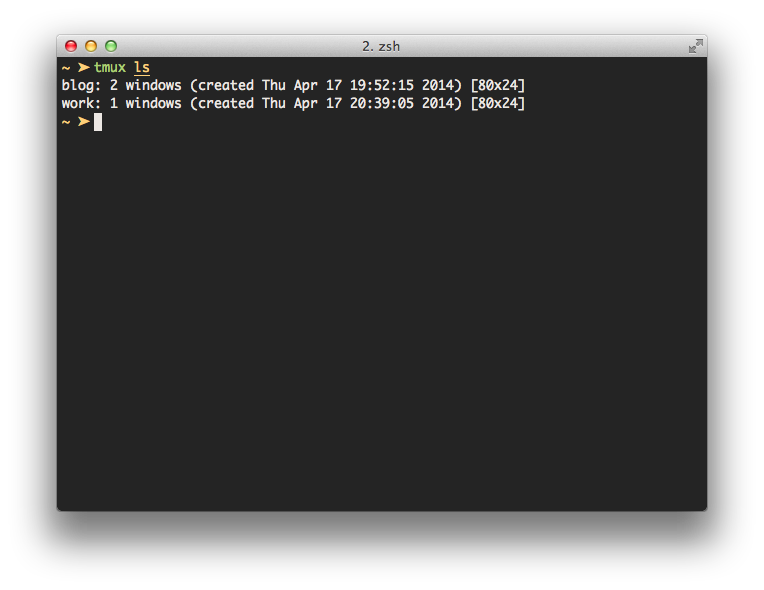
- If we are in a session we can detach from it by pressing
ctrl-a and d.
- To get the of list current sessions type
tmux ls or tmux list-sessions.
- When we know sessions names we can attach to them using
tmux attach -t <name> or we can kill session via tmux kill-session -t <name> command.
Configuration
Changes that can make your tmux usage even easier (applied in the configuration, default: ~/tmux.conf).
- remap
ctrl-b to ctrl-a: unbind C-b and set -g prefix C-a
- configuration reload:
bind r source-file ~/.tmux.conf \; display "Reloaded!"
- renumber windows after closing one:
set -g renumber-windows on
- windows numeration from 1 instead of 0:
set -g base-index 1
Since ctrl is heavily used (not only in tmux) I recommend to remap caps lock to act like ctrl in your operating system.
Tomasz Wójcik
Software developer, IT consultant.
A software programmer, master of Java who is not afraid to explore the Ruby on Rails. In the past he developed games in C, Objective-C and ActionScript 3 in these days he loves to do that after hours. Great fan of Git.


Comments